Sensory-Friendly Games for Kids: Sound, Motion and Surprises
By Karim Hadid, who makes Oopsies · Last updated October 16, 2026
Some kids love bright colors, giggles and things that move. For others, the same things are too loud, too fast or too much. A sensory-friendly game lets you turn down what your child doesn't like, and doesn't spring anything on them. This page covers what to check, how to set up the iPhone or iPad before you hand it over, and what to expect in each part of Oopsies, so you can pick where to start.
What to check in any game
-
Sound
Can you turn the sound off inside the game? Does it still play sound when the phone is on silent? Is there music that loops, or loud sounds that come out of nowhere?
-
Motion and light
How much moves on screen on its own? Is there flashing or flickering? Does the game calm down when the device's Reduce Motion setting is on?
-
Surprises
Ads, purchase pop-ups, chat with strangers, notifications, sudden full-screen effects: anything that can appear without warning.
-
Touch
Does the phone vibrate when your child taps? Some kids like the buzz, others don't. Is there a way to turn it off?
These match several of the Game Accessibility Guidelines that game developers use, like separate sound controls, an option to hide background movement, and avoiding flickering images. For the full list of what to look for, see our autism-friendly games guide and its printable checklist.
Set up the iPhone or iPad first
- Set the volume with the volume buttons before you hand it over. Guided Access (step 4) can lock those buttons so the volume stays put.
- Turn on Reduce Motion: Settings › Accessibility › Motion › Reduce Motion. Apps that follow it, like Oopsies, tone down their animations (Apple's guide).
- Stop other notifications from popping up over the game: turn on Do Not Disturb or Airplane Mode in Control Center. Oopsies' levels play in airplane mode.
- Keep your child in the game with Guided Access: turn it on in Settings › Accessibility › Guided Access and set a passcode. Then, inside the game, start it with the Accessibility Shortcut (usually a triple-click of the side or Home button). In Session Settings you can switch off the Volume Buttons and the Side Button, and set a Time Limit. A triple-click and your passcode end it (Apple's guide). Apple notes that Crash Detection and Emergency Services aren't available during a Guided Access session.
Set up Oopsies
Two buttons on Oopsies' home screen do most of the work: the speaker at the top right turns off every sound in the game, and the stopwatch at the top left hides the timer. Both settings stay until you change them.
Sounds in Oopsies
There's no music, only short sounds. One thing to know: Oopsies plays sound even when the iPhone is set to silent, so use the speaker button in the game rather than the silent switch.
| Sound | When you hear it |
|---|---|
| A soft click | When a button is tapped. |
| A transition sound | When a world opens. |
| A giggle | When an Oopsie is found, and as a hint in some worlds. |
| "Oops" | After a wrong tap. |
| A victory tune | When the victory screen appears, after each find. |
Motion and light in Oopsies
In every world: each level opens with a short reveal animation, which Reduce Motion turns into a simple fade. A wrong tap plays an "oops" and makes the Oopsie shake. Each find ends with a little burst of stars, then a victory screen with slowly turning rays of light behind the Oopsie's card. Reduce Motion doesn't change the find celebration or the victory screen.
The still worlds: in most worlds, such as Frosti Floops, Tiny Titans, Double Trouble, Shadow Show, Peekaboo and Family Reunion, nothing moves on its own: the Oopsies sit still on a light background until your child taps. A hint ring that gently pulses can appear after about 30 seconds without a find. In some worlds, like Frosti Floops and Starry Zoooooop, the picture can be bigger than the screen: your child moves around it with a finger, or zooms with two.
Worlds with more going on:
| World | What to expect |
|---|---|
| Lights Out | The room is dark and a flashlight lights up a few Oopsies at a time; your child drags the light around. In a few later levels, the flashlight flickers for a split second every few seconds, like a tired battery, and in one level the circle of light slowly shrinks. When the Oopsie is found, the lights come on. |
| Whoosh! | Every so often, a gust of wind mixes the Oopsies up. A gauge fills and the Oopsies wobble more and more before each gust, so it doesn't come out of nowhere, and no gust comes while a finger is on the screen. |
| Bubble Pop | Oopsies float up from the bottom of the screen in bubbles, swaying as they go. |
| Foggy Window | The Oopsies are behind a misted-up window. Wiping with a finger clears the fog, and it slowly comes back. |
| Starry Zoooooop and Odd Ones | Nothing moves on its own, but the backgrounds are dark (deep blue and deep purple), unlike the light colors of most worlds. |
Any world can be picked from the home screen, in any order, so you can skip the ones that don't suit your child. Each level also has more Oopsies than the one before, so later levels look busier.
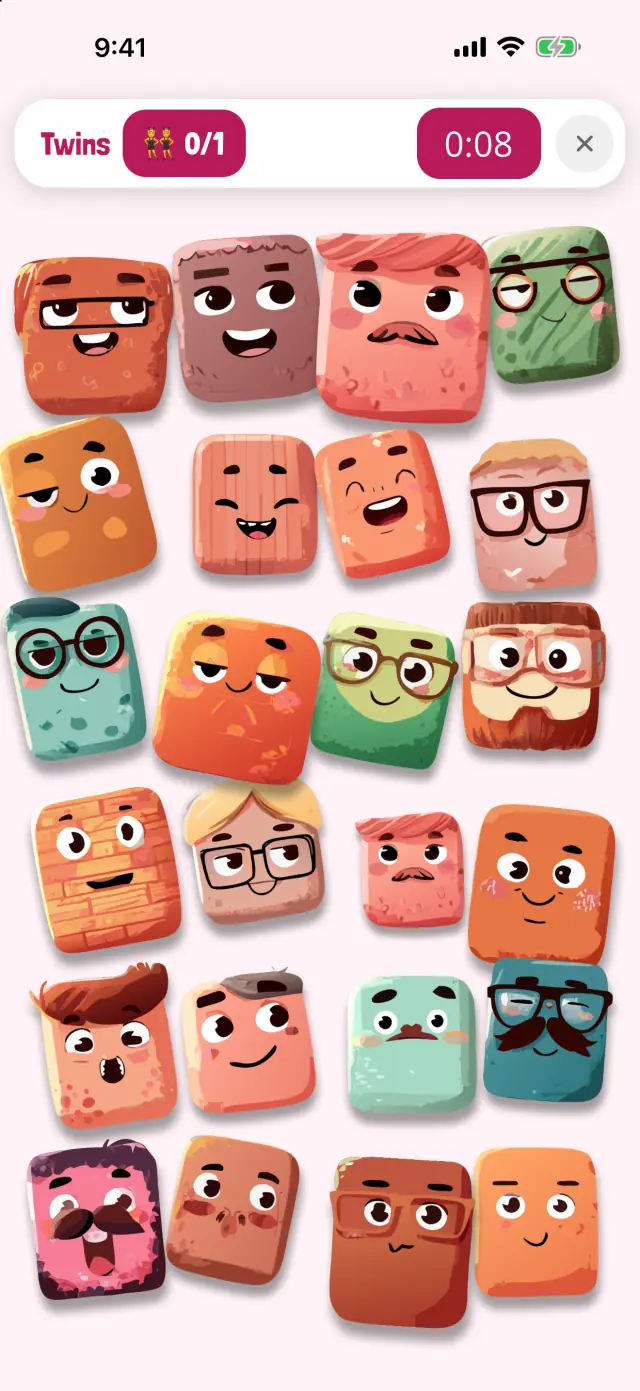
👯 Double Trouble
Two Oopsies are exactly alike.
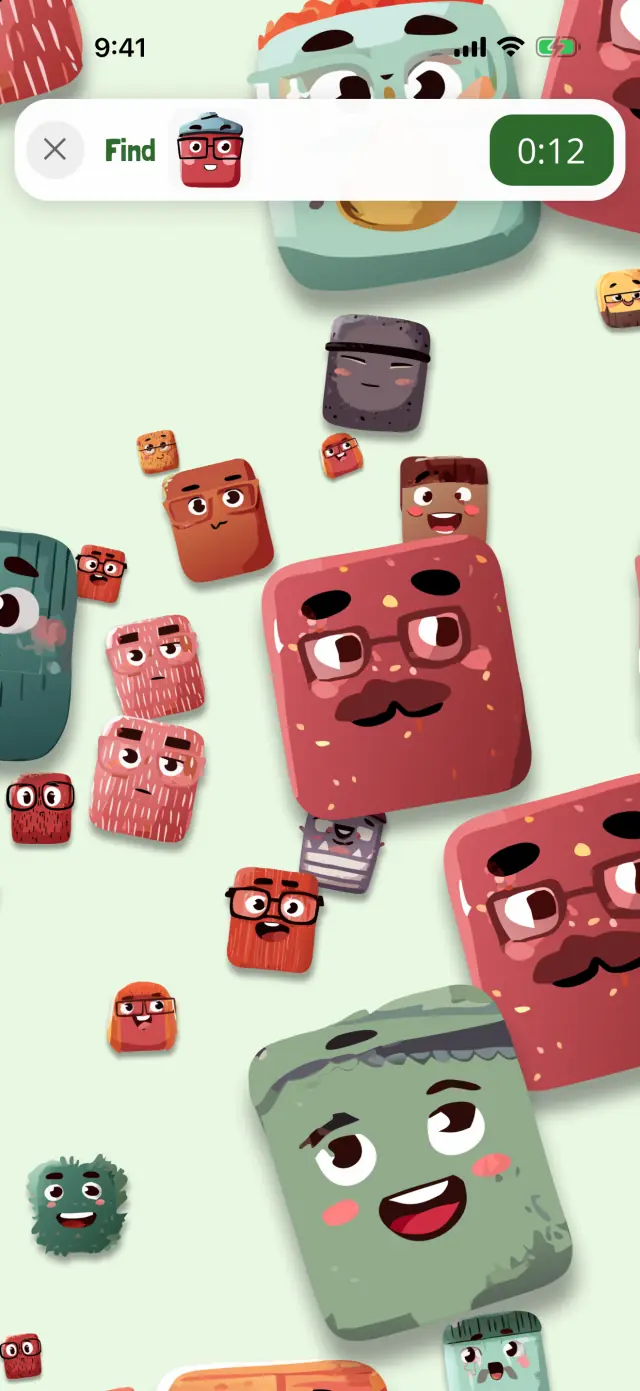
🐘 Tiny Titans
Some Oopsies are huge, some are teeny-tiny.
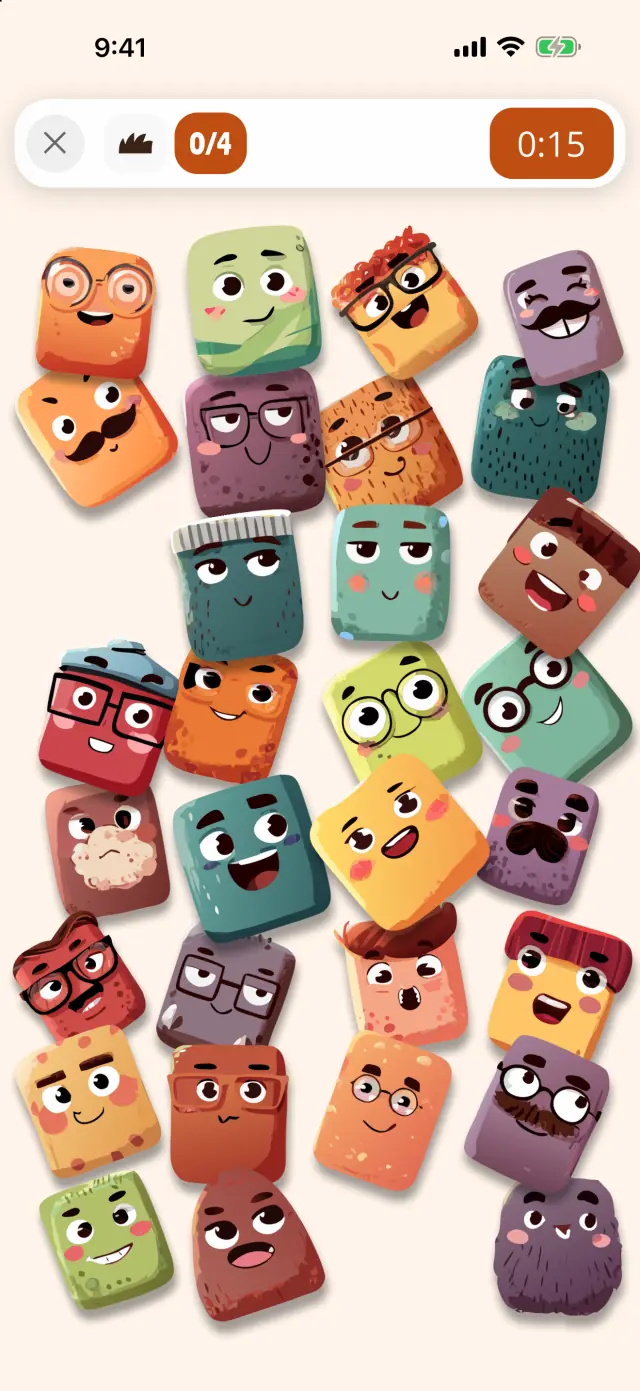
👨👩👧 Family Reunion
Find every Oopsie of the family.
Surprises and touch
- No ads, no in-app purchases, no chat. Nothing to buy and nobody to talk to.
- Two pop-ups can appear. At the end of some worlds, Oopsies asks whether you'd like to rate it, and once every world is done it offers notifications. Both have a "Not now" button.
- Celebrations. Finishing a world sets off confetti on the home screen.
- Vibrations. On iPhone, Oopsies gives a light buzz on some taps (a find, a wrong tap, some buttons). The sound button doesn't stop it, and there's no switch for it in the game yet. iPads don't vibrate, so if the buzz bothers your child, an iPad avoids it.
Questions from parents
What is a sensory-friendly game?
A game that lets you turn down what your child finds too much (sound, motion, light, vibration) and doesn't spring surprises on them, like ads or pop-ups. There's no official label: it depends on your child. The four things to check are sound, motion and light, surprises, and touch.
Does Oopsies play sound when my iPhone is on silent?
Yes. Oopsies plays its sounds even when the iPhone is set to silent, so the silent switch isn't enough. Use the speaker button at the top right of Oopsies' home screen instead: it turns off every sound in the game, and the setting stays until you change it.
Can I turn off the animations in Oopsies?
Partly. With Reduce Motion on (Settings › Accessibility › Motion), Oopsies tones down its home screen, card and level-start animations. Movement that's part of the game stays: the wind in Whoosh!, the bubbles in Bubble Pop, the flickering flashlight in some Lights Out levels, and the celebration after each find. Any world can be picked from the home screen, so you can stick to the still ones.
Does Oopsies have flashing lights?
There's no full-screen flashing. In a few later Lights Out levels, the flashlight flickers for a split second every few seconds. Each find ends with a short burst of stars, then a victory screen with slowly turning rays of light behind the Oopsie's card.
How do I stop my child from leaving the game?
Use Guided Access, built into iPhone and iPad: turn it on in Settings › Accessibility › Guided Access, then start it from inside Oopsies. It keeps the device in one app, can switch off the volume and side buttons, and can end the session after a time limit. You end it with your passcode.
About this page
Written by Karim Hadid, the independent developer who makes Oopsies. Karim isn't a clinician: this page describes the game and points to other sources. It isn't medical advice.
Reviewed by: not reviewed yet. We're looking for an occupational therapist or speech-language pathologist to check this page, and their name will appear here.
How we checked: every point about Oopsies was checked in the game's code. iPhone settings were checked in Apple's iPhone User Guide for iOS 27.
Sources
- Customize onscreen motion on iPhone. Apple iPhone User Guide.
- Lock iPhone to one app with Guided Access. Apple iPhone User Guide.
- Game Accessibility Guidelines, full list.
Spotted something wrong, or have a tip from your own family? Write to playoopsies@gmail.com.
Try Oopsies, set up your way
Free, no ads, no in-app purchases. Turn the sound off, hide the timer, start with a still world, and let your child play at their own pace.